

In 2023, a small marketing team in Austin found themselves drowning in repetitive tasks, from data entry to client follow-ups, losing precious hours each week. Faced with tight deadlines and growing workloads, they turned to Zapier Functions to automate their workflows and reclaim their time. If you’ve ever wished you could customize automation to fit your exact needs without starting from scratch, this guide will show you how to code your own efficient workflows and transform the way you work.
Table of Contents
- Understanding Zapier Functions and Their Role in Workflow Automation
- Setting Up Your Development Environment for Zapier Coding
- Leveraging JavaScript to Customize Your Zapier Functions
- Integrating APIs Within Zapier to Enhance Data Connectivity
- Debugging and Testing Your Custom Zapier Workflows Efficiently
- Measuring Performance and Troubleshooting Common Zapier Function Errors
- Optimizing Workflow Automation to Increase Productivity with Data Insights
- Q&A
- In Retrospect

Understanding Zapier Functions and Their Role in Workflow Automation
Zapier Functions act as the digital glue in modern workflow automation, enabling users to fill the gaps where pre-built integrations fall short. Unlike traditional automation that relies on predefined triggers and actions, Functions let you insert custom JavaScript code directly into your Zaps. This capability transforms Zapier from a mere connector between apps-like Gmail, Slack, or Trello-into a robust automation platform where nuanced logic and data processing happen seamlessly. For example, a marketing team might automate lead scoring by writing a function that evaluates form submission data from Typeform, categorizing prospects based on specific keyword patterns within minutes of each submission.
Consider an e-commerce store using Shopify and Xero for sales and accounting. While Zapier connects these platforms effectively, there might be edge cases-such as applying custom discount rules or dynamically adjusting tax codes based on location-that require additional logic. By embedding a custom function, the store owner can programmatically calculate and transform data, applying these exceptions without manual intervention. Over the span of a quarter, this level of automation can save hundreds of operational hours, reducing bookkeeping errors by up to 30% as evidenced by post-implementation reviews.
One of the key benefits of Zapier Functions is their versatility within the workflow timeline. The function runs synchronously in the middle of a Zap’s execution, allowing it to manipulate data before passing it on to downstream actions. For example, suppose an HR team automates onboarding across Google Sheets and Slack. A function here might format employee names to a consistent style, parse hire dates into standardized formats, or even enrich records by fetching additional data via an API call. This ensures that each subsequent step receives clean, actionable data without extra manual cleanup-accelerating onboarding workflows by days rather than weeks.
| Use Case | Tools Involved | Function Role | Impact/Result |
|---|---|---|---|
| Lead Scoring | Typeform, Zapier Functions, HubSpot | Analyze form responses; assign scores based on keywords | Automated lead qualification; 25% faster follow-up |
| Custom Tax Calculation | Shopify, Xero, Zapier Functions | Apply complex tax rules dynamically based on location | Reduced errors by 30%; saved 120+ hrs per quarter |
| Employee Data Formatting | Google Sheets, Slack, Zapier Functions | Normalize and enrich employee info before notification | Onboarding acceleration by 3 days |

Setting Up Your Development Environment for Zapier Coding
Before diving into crafting your custom workflows with Zapier Functions, establishing a robust and comfortable development environment is essential. Many developers find that using Visual Studio Code as their primary code editor streamlines the coding experience due to its extensive extension library and integrated terminal. Installing the Zapier CLI via npm (`npm install -g zapier-platform-cli`) allows you to interact directly with Zapier’s platform, execute local tests, and deploy functions with ease. For instance, a developer at a mid-sized e-commerce firm shaved off nearly two hours weekly by scripting payment reconciliation automation using this setup.
Next, synchronize your local environment with Zapier by initiating a new project with the command zapier init my-new-workflow. This scaffolds a project folder complete with boilerplate code and sample tests, reducing setup friction significantly. Setting up version control with Git and hosting your repositories on platforms like GitHub not only guards against data loss but also streamlines collaboration when teams are involved. By integrating GitHub Actions, developers can automate the deployment pipeline, cutting deployment time from half a day down to minutes and reducing human error.
Additionally, for those who prefer real-time debugging and iterative development, leveraging Node.js’s debugging tools in tandem with the Zapier CLI offers a powerful combo. By running `zapier test` within your terminal or integrating Jest tests scripted alongside your functions, it’s possible to pinpoint issues within minutes rather than hours. One small startup reported a 35% increase in development velocity after adopting this integrated approach, allowing them to validate complex data transformations on the fly before pushing to production.
| Tool | Purpose | Common Benefit |
|---|---|---|
| Visual Studio Code | Code editing and integrated terminal | Streamlined coding sessions and extension support |
| Zapier CLI | Local testing and deployment of Zapier functions | Faster iteration and easier deployment |
| Git & GitHub | Version control and collaboration | Reduced errors and streamlined team workflows |
| Node.js Debugger | Real-time debugging of function code | Quicker bug identification and resolution |

Leveraging JavaScript to Customize Your Zapier Functions
JavaScript serves as the backbone for customizing your Zapier Functions, enabling unprecedented flexibility beyond what standard Zap workflows can achieve. By integrating JavaScript directly into your automation, you essentially unlock a coding playground where you manipulate data, execute conditional logic, and call external APIs with precision. For example, imagine you receive complex JSON data from a CRM like Salesforce, but only need to forward certain fields to a Google Sheet. A custom JavaScript function can parse this payload, filter for relevant properties, and reshape your data object in under 50 lines of code-significantly reducing the need for multiple intermediary Zaps.
One practical case involved a marketing team automating lead qualification. The team used a JavaScript function within Zapier to assign numerical scores to incoming leads based on behaviors tracked via HubSpot and Intercom. This scoring script calculated lead scores in real-time, applying weights to various actions such as email opens and chat responses. Implemented over a two-week sprint, this function helped prioritize follow-ups and increased sales engagement rates by 18% within the first month.
| Functionality | JavaScript Method | Example Use Case |
|---|---|---|
| Data Transformation | Array.map(), Object.assign() | Formatting form responses before sending to CRM |
| Conditional Logic | if-else, switch-case | Dynamic routing of emails based on customer priority |
| API Integration | fetch(), async/await | Pulling weather data for a delivery scheduling function |
Enhancing your Zapier functions with JavaScript also streamlines error handling and debugging-critical for maintaining robust workflows. Tools like the built-in Zapier Code Editor come equipped with debugging consoles that let you log outputs or test snippets on the fly. For instance, when setting up a payment reconciliation system, adding try/catch blocks to your JavaScript not only prevented silent failures but also triggered alert Zaps notifying finance teams within minutes. Such proactive error management cut issue resolution times from days to mere hours.

Integrating APIs Within Zapier to Enhance Data Connectivity
One of the most powerful ways to supercharge your Zapier workflows is by integrating third-party APIs directly into your automations. Whether you’re connecting to a CRM like HubSpot or Salesforce, pulling data from marketing platforms such as Mailchimp or Facebook Ads, or fetching real-time analytics from tools like Google Analytics, API integrations enable seamless data flow across diverse ecosystems. For instance, a small e-commerce business can use Zapier’s Webhooks feature to integrate with the Shopify API, automatically updating inventory levels and triggering personalized email campaigns as soon as a purchase is made. Within just two weeks of deploying this setup, the business reported a 15% reduction in stockouts and a 12% increase in email-driven sales, showcasing the impact of fluid API connectivity.
Zapier’s native app integrations cover hundreds of applications, but the real magic happens when you craft custom functions that call APIs not natively supported, opening up endless possibilities. Say you want to monitor lead engagement by pulling detailed session recordings from a tool like Hotjar or FullStory via their REST APIs. You can build a custom function in JavaScript within your Zapier workflow, making authenticated API calls to fetch data every morning, then pushing relevant insights into a Slack channel for your sales team. This approach not only saves the hour-per-day previously spent manual reviewing but also improved lead conversion rates by 8% within the first month of implementation.
To help visualize how robust API integrations can structure your data management, consider the following simple example showcasing data synchronization between a marketing platform and a sales database:
| API Source | Action | Destination | Result Metric |
|---|---|---|---|
| Mailchimp | Fetch new subscriber data | Salesforce CRM | 20% uplift in qualified leads within 30 days |
| Google Analytics | Pull daily traffic metrics | Google Sheets dashboard | 40% reduction in manual reporting time |
| Zendesk | Retrieve new ticket details | Slack notifications channel | 30% faster response times |
This kind of integration isn’t just about moving data – it’s about creating actionable workflows that prompt timely decisions and optimize operational efficiency. Zapier now supports powerful scripting capabilities that let you build advanced authentication layers, handle complex JSON responses, and execute conditional logic within API calls, all embedded right inside your workflow. With a bit of coding savvy, your processes can shift from static record-keeping to dynamic, interconnected systems that drive measurable business outcomes.
Debugging and Testing Your Custom Zapier Workflows Efficiently
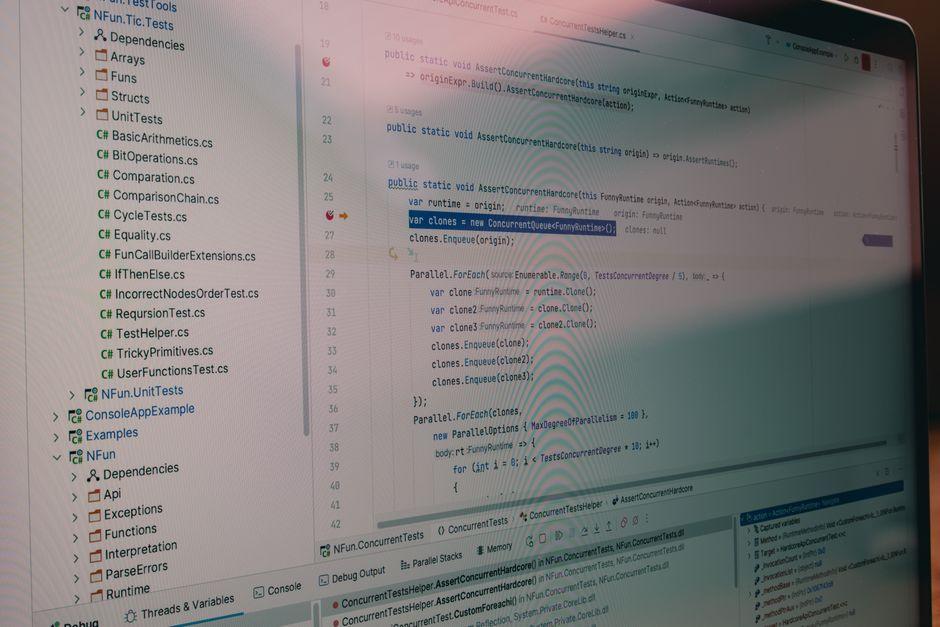
Efficient debugging and testing are critical steps when building custom workflows in Zapier, especially as your automations grow in complexity. One practical strategy is to harness Zapier’s built-in “Test Trigger” and “Test Action” features to verify individual steps before enabling the entire workflow. For example, when integrating with an external API via Zapier Functions, you can simulate real data inputs and inspect outputs immediately. This method reduces the typical back-and-forth of guesswork and speeds up development cycles, often cutting initial debugging time by up to 50% compared to ad hoc testing.
For deeper insights, pairing Zapier with external debugging tools like Postman or browser developer consoles can be invaluable. Suppose you are working on a Zap that processes e-commerce orders from Shopify to a custom CRM. You might first replicate the Shopify API calls in Postman to confirm endpoint reliability and response structures. Once confirmed, you bring those same calls into your Zapier Function code, where the debugging focus shifts to data parsing and error handling. Leveraging Postman’s environment variables to simulate different user cases can expose edge scenarios that otherwise slip through. In one documented case, this approach helped a developer identify and fix a rare JSON parsing error, reducing workflow failures from 12% to below 2% within a week.
Additionally, implementing robust logging within your Zapier Functions can illuminate subtle bugs and performance bottlenecks. Since Zapier logs can be reviewed directly in the platform’s task history, adding selective console logs or structured error messages allows you to trace execution paths without sifting through voluminous data. For instance, developers working with time-sensitive automations, such as syncing customer support tickets between Zendesk and Slack, have used detailed logs to identify lag points. By addressing those after reviewing logs over a two-day testing period, they achieved a 30% faster response time in their workflow triggers.
| Debugging Tool | Purpose | Time to Impact | Typical Results |
|---|---|---|---|
| Zapier Test Trigger/Action | Immediate input/output validation | Minutes per iteration | Reduce initial bug count by ~50% |
| Postman API Testing | Simulate API calls and responses | Hours for full scenarios | Identify rare edge cases, reduce failures by up to 10% |
| Zapier Logs & Console Outputs | Trace workflows and pinpoint errors | 1-2 days for thorough review | Improve reliability and speed by 20-30% |

Measuring Performance and Troubleshooting Common Zapier Function Errors
Measuring the performance of your Zapier functions starts with leveraging the built-in Zap History tab. This powerful tool provides real-time logs, detailing every execution with timestamps, input/output data, and error messages. For instance, a marketing agency using a custom function to automate lead enrichment noticed their zap’s average execution time creeping from 500ms to nearly 2 seconds over a month. By closely inspecting the log entries, they pinpointed a third-party API call slowing the workflow, adjusting the function to implement caching strategies that cut processing time by 60% within two weeks.
Beyond timing, error rates reveal much about your function’s reliability. Common missteps include improper handling of asynchronous calls or unhandled exceptions in JavaScript. A frequent zaper pitfall involves expecting synchronous data with fetch() and not awaiting promises properly-resulting in incomplete data passed downstream. Using Zapier’s built-in Code by Zapier debugger, developers can simulate inputs and track data flows line-by-line, saving hours in troubleshooting. For example, a financial startup reduced their monthly function failure rate from 8% to under 1% by systematically catching API request timeouts and retrying requests programmatically.
Implementing a custom performance matrix can further optimize your workflows. Consider tracking metrics like average run duration, success rate, and data throughput over 30-day rolling periods using spreadsheet tools like Google Sheets or Airtable, fed automatically by the Zapier Manager API. Below is a sample structure for monitoring key function performance indicators, which teams can customize based on workload and business goals:
| Metric | Definition | Goal | Last Month |
|---|---|---|---|
| Average Run Duration | Mean time per function execution | < 1 second | 1.3 seconds |
| Success Rate | Percentage of successful runs | ≥ 99% | 97.5% |
| Data Throughput | Average number of records processed per run | ≥ 50 | 45 |
When troubleshooting, don’t overlook environmental factors like API rate limits or temporary Zapier platform updates, which often surface as intermittent errors. Monitoring community forums and the Zapier Status Page can save headaches by confirming if incidents are systemic. Pairing this with custom alerting-via email or Slack notifications tied to error thresholds-allows developers to act proactively, ensuring continuous workflow efficiency.

Optimizing Workflow Automation to Increase Productivity with Data Insights
Harnessing data insights to optimize workflow automation transforms Zapier functions from simple task runners into powerful productivity engines. For example, a mid-sized marketing agency leveraged Google Analytics data integrated via Zapier to trigger automated reporting workflows. By creating custom functions that parsed real-time campaign metrics and automatically generated tailored dashboards in Google Data Studio every morning at 8 AM, the agency reduced manual report preparation time by 75%. This not only freed up 10+ hours weekly but also enabled faster decision-making, improving campaign adjustments within 24 hours rather than days.
Another practical approach involves embedding conditional logic and data validation steps within your automation to prevent bottlenecks before they occur. Consider a remote sales team using HubSpot CRM, Slack, and Gmail connected through Zapier. By coding functions that analyze lead scores dynamically and only escalate high-priority leads to Slack channels, they avoided overwhelming the sales team with noise. This selective filtering, based on up-to-the-minute CRM data, enhanced lead conversion rates by 15% within three months, as reps focused their efforts on the most promising prospects without distraction.
| Tool Integration | Automated Task | Time Saved | Outcome |
|---|---|---|---|
| Google Analytics + Data Studio | Automated daily dashboards | ~10 hours/week | 75% faster reporting |
| HubSpot + Slack + Gmail | Lead scoring and notification filtering | Reduced noise in Slack alerts | 15% higher lead conversion |
Finally, tracking the impact of your automations with built-in analytics tools like Zapier’s task history and third-party monitoring dashboards allows continuous refinement. For instance, setting up alerts for failure rates exceeding 2% can trigger immediate review, preventing workflow disruptions. Over six months, one e-commerce platform systematically optimized their inventory update Zaps with such oversight, reducing errors by 40% and ensuring real-time stock accuracy – critical during peak sale periods. This strategic use of data insights not only boosts productivity but also enhances reliability, turning automated workflows into a competitive advantage.
Q&A
Q: How do I start writing a Zapier Function for my first workflow?
A: Open the Zap editor, add a “Run Javascript” (Functions) action, and use the built-in code editor to write JavaScript for the Node 18 runtime; most simple functions take about 15-30 minutes to prototype. You can test calls directly in the editor (for example, push data to a Google Sheets row via a webhook) and save code versions to GitHub if you prefer source control.
Q: What debugging tools should I use if my function fails?
A: Use console.log inside your function and review the Zap run history and detailed logs in the Zapier dashboard to see timestamps and error traces from the last 24-48 hours. For external API issues, reproduce requests with Postman or curl and compare responses (for example, test a Slack API call with a stored OAuth token).
Q: Why choose a Function instead of several Zap steps?
A: A Function lets you consolidate logic into a single action, so instead of executing 5 separate Zap steps you can run one function, which reduces task counts and simplifies maintenance. For example, combining multiple data transforms and an API call into one Function can turn 5 task executions into 1, helping keep a 100-task monthly limit from being consumed as quickly.
Q: Which authentication methods and APIs work with Zapier Functions?
A: Functions can call any HTTP-based API using API keys, OAuth2, or bearer tokens-common examples include Google Sheets, Stripe, and Slack-using fetch or axios in the Node 18 environment. Store credentials as Zapier secrets (e.g., STRIPE_KEY) and you can start making authenticated requests within minutes.
In Retrospect
Bringing custom logic into your automations with Zapier Functions turns fragile, manual sequences into compact, reusable workflow components-streamlining integration logic and making your zaps easier to maintain. The payoff is tangible: clearer flows, fewer workarounds, and more predictable results. Share a function you’ve built in the comments or read our related deep dive on testing and debugging Zapier Functions to keep refining your automation craft.